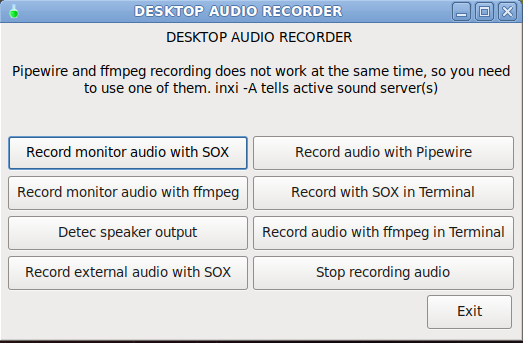
Simple audio recorder, which uses pulseaudio. Pipewire is an optiotional choice. Packages yad, xterm, pulseaudio, sox and ffmpeg are required.
RPM-desktop-audio-recorder-pulse-with-source
DEB-Desktop-audio-recorder-with-script.zip
Pipewire and ffmpeg only version RPM-desktop-audio-recorder-pc-with-source.pc.zip
************************************************
#!/bin/sh

#

# RJP 2.8.2026

# simple desktop audio recorder

# Tested in Mageia 10 with pulseaudio

# Packages yad, xterm, pulseaudio, sox and ffmpeg are required

# Pipewire in an optitinal choise

#

#

time=$(date "+%F-%H-%M-%S")
9464=$({
echo '#!/bin/bash
time=$(date "+%F-%H-%M-%S")
pw-record -P "'{ stream.capture.sink=true }'" Recording-$time.flac
'
} > /tmp/pipewire-recording)
9466=$({
echo '#!/bin/bash
killall sox | killall --user $USER --ignore-case --signal INT ffmpeg | pkill pw-record
'
} > /tmp/stop-recording)
chmod +x /tmp/stop-recording
chmod +x /tmp/pipewire-recording
yad --form --center --columns=2 --rows=4 --text-align=center --width=600 --title="DESKTOP AUDIO RECORDER" --text="DESKTOP AUDIO RECORDER
Pipewire and sox with pulseaudio recording does not work at the same time, so you need to use one of them. inxi -A tells active sound server(s)
" \
\
--field="Record monitor pulseaudio with SOX":fbtn "sh -c 'sox -t pulseaudio alsa_output.pci-0000_00_1b.0.analog-stereo.monitor -t mp3 Recording-$time.mp3 ; exec sh' & " \
--field="Record monitor audio with ffmpeg":fbtn "sh -c 'ffmpeg -f pulse -i alsa_output.pci-0000_00_1b.0.analog-stereo.monitor -c:a libmp3lame -q:a 2 Recording-$time.mp3 ; exec sh' & " \
--field="Detec speaker pulseaudio output":fbtn "xterm -e sh -c 'pacmd list-sinks | grep -e 'name:' -e 'index' -e 'Speakers' ; exec sh' & " \
--field="Record external audio with SOX":fbtn "sh -c ' sox -t alsa default Recording-$time.wav; exec sh' & " \
--field="Record pulseaudio with SOX in Terminal":fbtn "xterm -e sh -c 'sox -t pulseaudio alsa_output.pci-0000_00_1b.0.analog-stereo.monitor -t mp3 Recording-$time.mp3 ; exec sh' & " \
--field="Record audio with ffmpeg in Terminal":fbtn "xterm -e sh -c 'ffmpeg -f pulse -i alsa_output.pci-0000_00_1b.0.analog-stereo.monitor -c:a libmp3lame -q:a 2 Recording-$time.mp3 ; exec sh' & " \
--field="Record audio with Pipewire":fbtn "/tmp/./pipewire-recording & " \
--field="STOP RECORDING":fbtn "/tmp/./stop-recording " \
--button=Exit:1
cd /tmp && rm stop-recording pipewire-recording